Getting to know VoiceOver: Supporting Mac and iPhone screen reader users
Recently, one of our access panel members reached out for help with VoiceOver. She had run into a frustrating problem and was looking for ways to work around it.
As is often the case, the real issue was not VoiceOver itself. The problem was poor accessibility in the website and documents she was trying to use. When things are not built properly, even the best tools can only go so far.
But we still wanted to support her to explore her options, learn more about VoiceOver, and feel confident using the tools available to her. That is part of what good accessibility support looks like, not just fixing barriers, but helping people navigate the world as it is today.
VoiceOver
When people talk about screen readers, NVDA and JAWS usually come up first. They are widely used, especially on Windows.
However, there is a strong and loyal group of Mac and iPhone users who rely on VoiceOver. In fact, surveys like the WebAIM screen reader survey show that VoiceOver is a regular part of many people’s lives, particularly for those in the Apple ecosystem. VoiceOver is also the preferred mobile screen reader solution.
Despite that, many training materials and guides focus heavily on NVDA and JAWS. This means there are fewer resources out there for Voiceover users, especially when it comes to learning commands and getting comfortable with how it works.
That gap matters. If we want digital spaces to be inclusive, we need to support people using all types of technology, not just the most common ones.
A quick look at how VoiceOver works
VoiceOver is built into Apple devices, including Mac, iPhone and iPad. That means it is available straight away, without needing to install anything extra.
Like all screen reader solutions, it works by reading out what is on screen and allowing users to move through content using gestures (on mobile) or keyboard commands (on Mac).
For example:
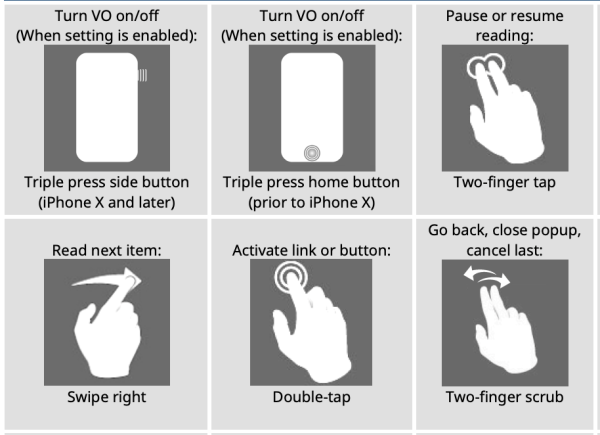
- On iPhone, users can swipe left or right to move between items and double tap to activate something
- On Mac, users often use keyboard commands like Control + Option to navigate
- Features like the rotor allow users to quickly jump between headings, links, or form fields
These small interactions make a big difference when content is built accessibly.
Useful resources to get started
To support our panel member, our clients’ testers, and anyone else using VoiceOver, we have pulled together a few useful resources. If you are an iPhone user and a bit curious, it is also worth turning VoiceOver on just to see how it feels. It can be a powerful way to understand accessibility from another perspective.
- Deque University screen reader cheat sheets – a great starting point for multiple screen readers
- Apple VoiceOver guide (Mac) – official guidance from Apple
- Apple VoiceOver resources – broader help and learning materials
- Paul Adams’ VoiceOver notes (PDF) – practical tips and commands for day-to-day use
A final thought
VoiceOver is a strong, capable tool. But like all assistive technology, it works best when the content it interacts with is built well.
Good accessibility means:
- Buttons behave like buttons
- Headings are structured properly
- Images have useful descriptions
- Forms are clear and usable
When we get these things right, we remove barriers. When we do not, people are left to work around problems that should not be there in the first place.
If you would like help improving the accessibility of your website, app, or documents for screen reader users of all types, we would love to support you.